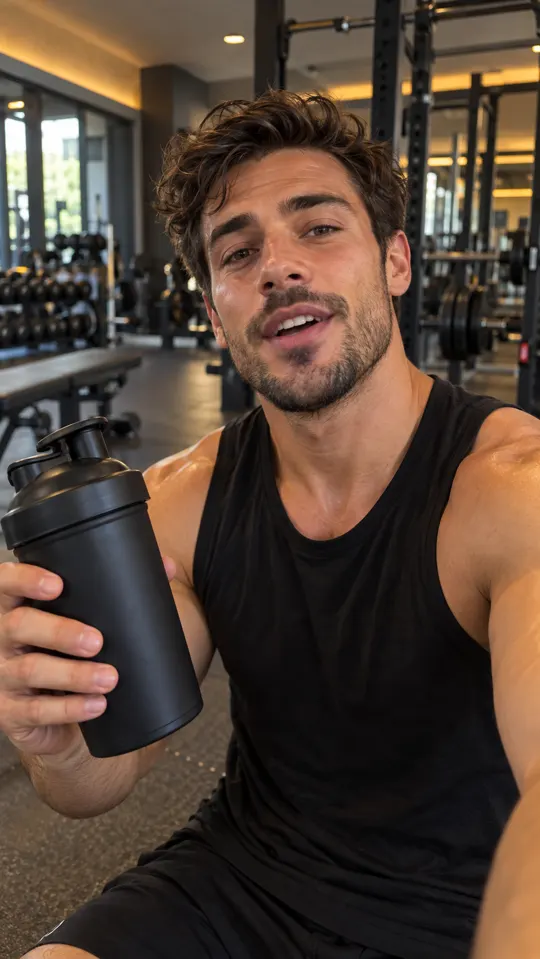
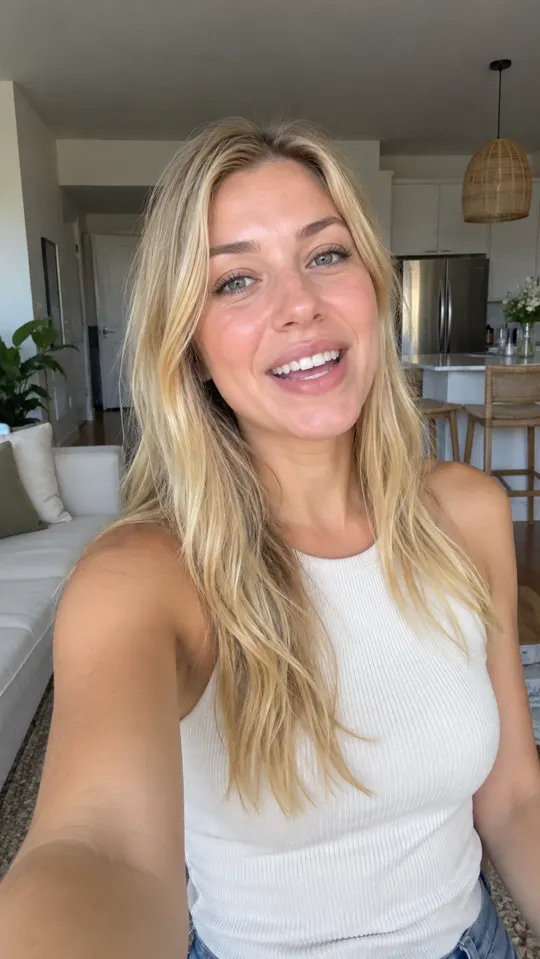
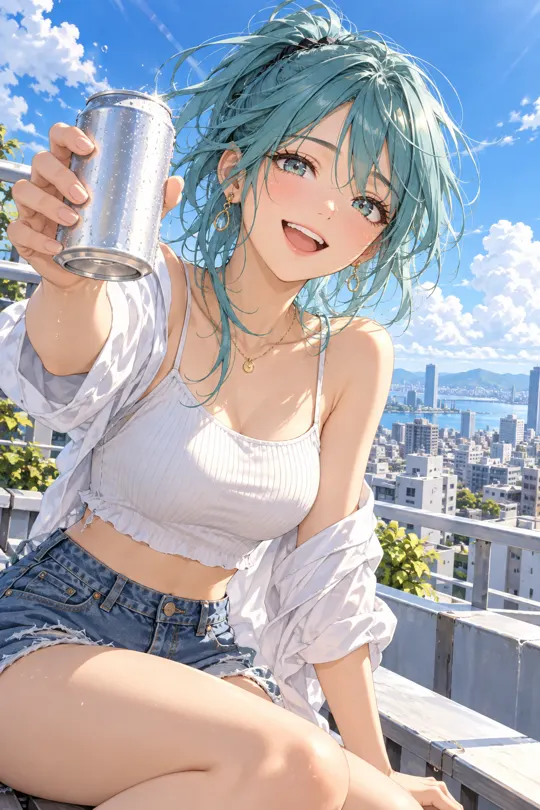
Start with the image. Build the scene.
Use Veo 3.1 to develop video from an image. Establish the visual direction first, then shape the scene and finish your ad with captions, music and trims.
- Model
- Veo 3.1
- Provider
- Input
- Image to video
- Listed capability
- 4K
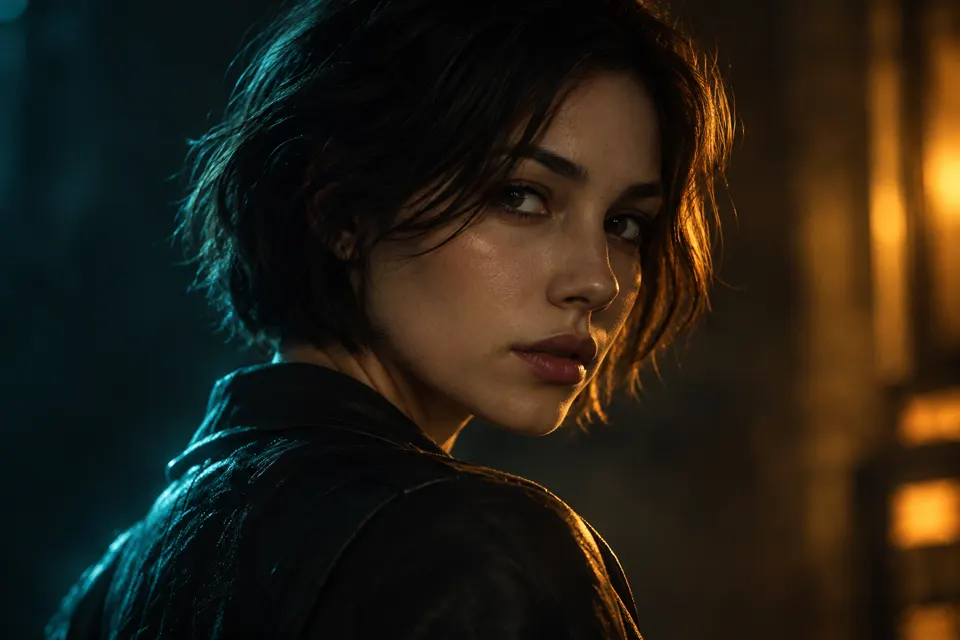
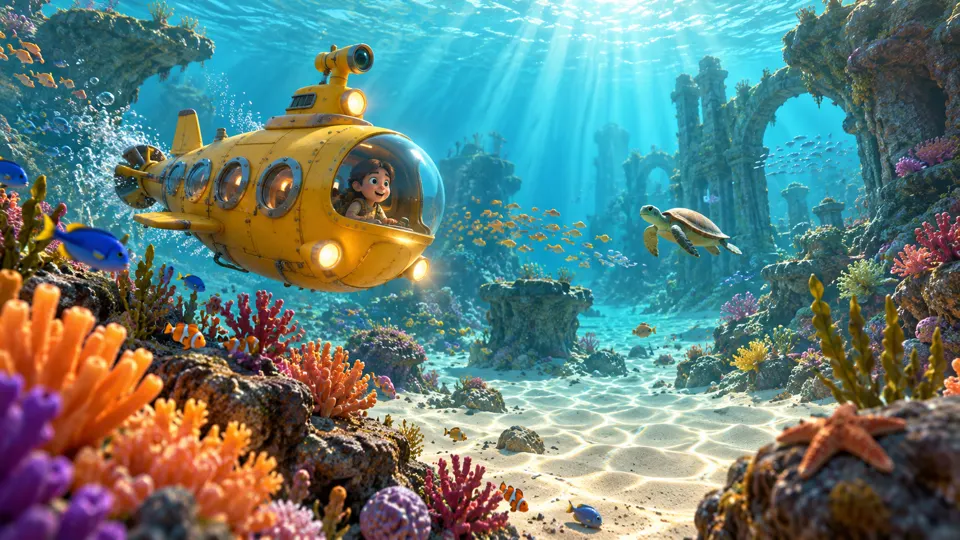 AI GENERATED
Anchor the visual direction
Begin with an image that establishes the subject and setting before you develop the moving scene.
Explore image-led video
Use Veo 3.1's listed image-to-video workflow to turn a visual concept into footage for your creative.
Match export to your plan
Veo 3.1 lists 4K capability. AdsRender AI's HD, 2K and 4K export options are listed on Growth and Pro.
Three steps
Choose the starting image
Use an image with a clear subject and composition. Confirm the rights to every visible asset.
Generate with Veo 3.1
Select the model when available on your plan and guide the scene with a focused brief.
Inspect and finish
Review the movement and product details, then edit the scene into the final ad and export within your plan.
Who provides Veo 3.1?
Veo 3.1 is a Google model. Model names belong to their respective owners.
Does Veo 3.1 support 4K?
The model lineup lists Veo 3.1 for image to video with 4K capability. Available generation options and your plan's export settings are separate; Growth and Pro list 4K exports.
Can I use a generated image as my starting point?
You can develop an image in the image workflow and use an authorized image as a video starting point. Review the image for product accuracy before adding motion.
Keep exploring
Choose your image-led video workflow
Review the pre-launch plans and export options. Payments for the $1 trial offer are not live yet.
Compare plans →