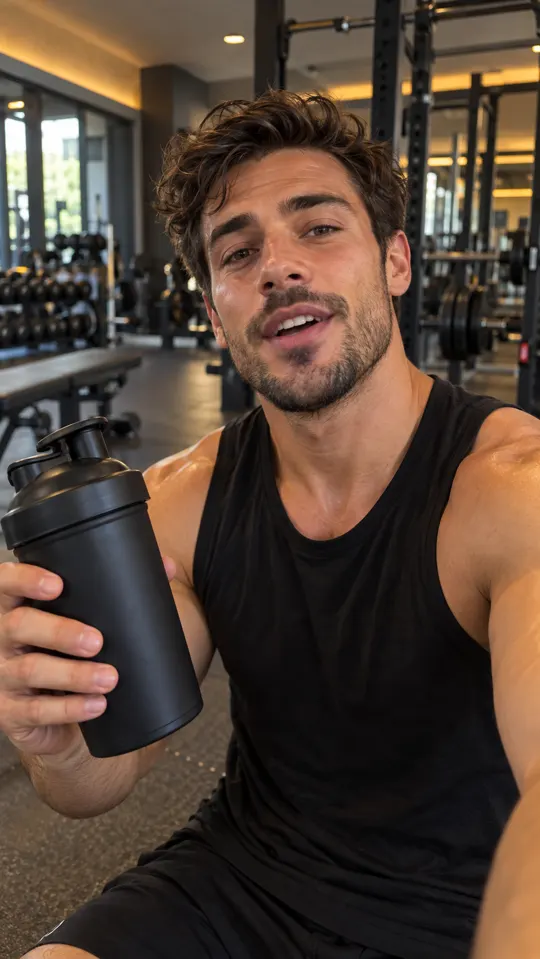
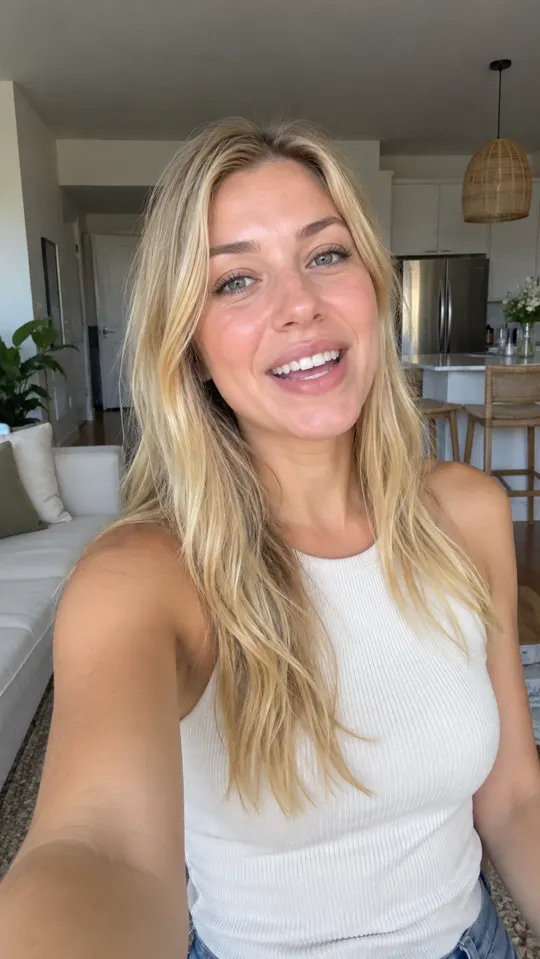
Give your script something to show
Fill the gaps between the headline and the product reveal. Generate supporting footage that gives each beat of your ad a clear visual job.
- Inputs
- Prompt or image
- Use
- Supporting video shots
- Editing
- B-roll, music, trims


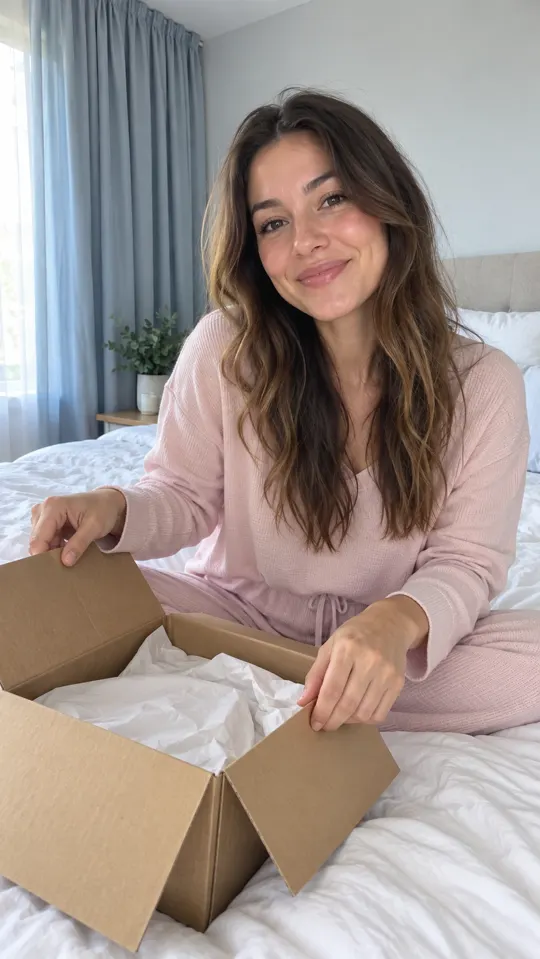 AI GENERATED
Show the idea behind the words
Build cutaways around the setting, mood or product detail your script needs to communicate.
Give each shot a purpose
Plan a reveal, a close-up or a transition instead of adding unrelated footage just to fill the timeline.
Keep the message connected
Bring the supporting clips into the editor with your main video, captions and music.
Three steps
Mark the visual gaps
Read your script and list the moments that need a product detail, scene change or visual explanation.
Generate the missing shots
Use a prompt or image to create footage for those moments with an available video model.
Edit for clarity
Place B-roll where it supports the message, check continuity and remove shots that distract from the product.
What is B-roll in an ad?
B-roll is supporting footage around the main message: a product detail, a setting or a transition. It should clarify what the ad is saying rather than introduce a different promise.
Can I generate footage without filming?
Yes. The video workflow supports text or image inputs, so you can develop supporting scenes without a new shoot. Check generated visuals for accuracy before publishing.
Where do I assemble the final ad?
Use the Video Editor to combine the message with B-roll, captions, music and trims. Export quality depends on your plan.
Keep exploring
Plan the shots your next ad needs
Join the launch and choose a plan. The $1 trial offer is pre-launch; no payment is collected yet.
Join the launch →